



Tesla allows its owners to provide temporary access to new drivers for their vehicles through the Tesla app. This feature allows you to add or even remove the added driver without having to give them your credentials. This feature allows additional drivers to operate your vehicle while using the Tesla app from their phones.
Although this feature has proved to be useful on multiple occasions, it can still sometimes pose certain errors and threats.
Do you face a Tesla add driver not working issue when you try to add new drivers? No worries! In this guide, I’ll provide you with a detailed guide on what causes these issues and how to solve them.
Note: Would you like to read more of these Tesla troubleshooting guides? Check out the reasons why the Tesla dashcam is not working.
How To Add Driver To The Tesla App?
Want to add a new driver to your Tesla? You can use both your phone and PC to add up to five drivers to your Tesla.
Just follow the instructions below to add a new driver with convenience:
- Launch the Tesla App.
- Select the car to which you want to add a driver.
- Select ‘Security & Drivers‘.
- Select ‘Add Driver‘.
- Now, add all the required information about the driver you want to add.
- Finally, send an invitation to the driver you want to conclude and you’re done!
How To Remove A Driver From Your Tesla?
Follow the steps below to remove a driver from your vehicle:
- Launch the Tesla App.
- Select the car from which you wish to remove a driver.
- Select ‘Security & Drivers‘.
- Tap on ‘Manage Drivers‘.
- Click on ‘Remove‘ present next to the name of the driver you wish to remove.
- Confirm your choice by clicking ‘Yes‘.
Note: Take a look at the video below to learn how to add or remove a driver.
Common Causes:
Want to add a new driver to the Tesla insurance or Tesla app but this doesn’t seem to work? Is there no option available to add a driver? There are numerous reasons which may lead you to face this problem.
5 Ways to Fix Add Driver Not Working Issue:
If you face an error while trying to add a driver, try the steps below.
1. Log Out Of The App
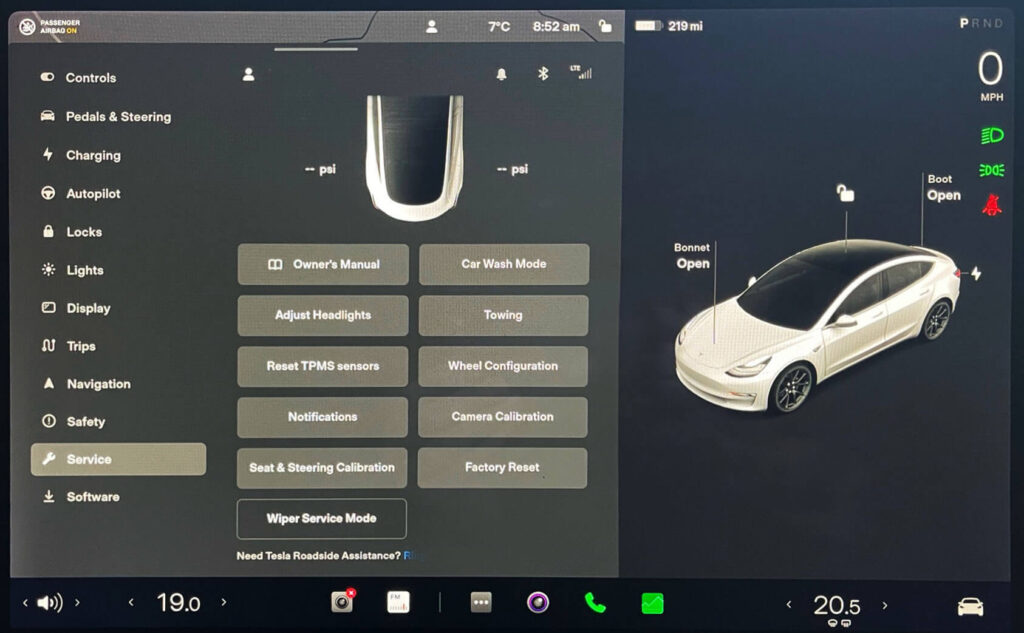
This happens when the app glitches. In this case, the new driver needs to log out of the app. Now, wait for a while and then log in again.
Note: Dealing with Wi-fi issues in your Tesla? Know why your Tesla’s Wifi is not working through this guide.
2. Install The New Version Of The App
Check if you have an outdated version of the app. Install the newer version for proper working of the app.
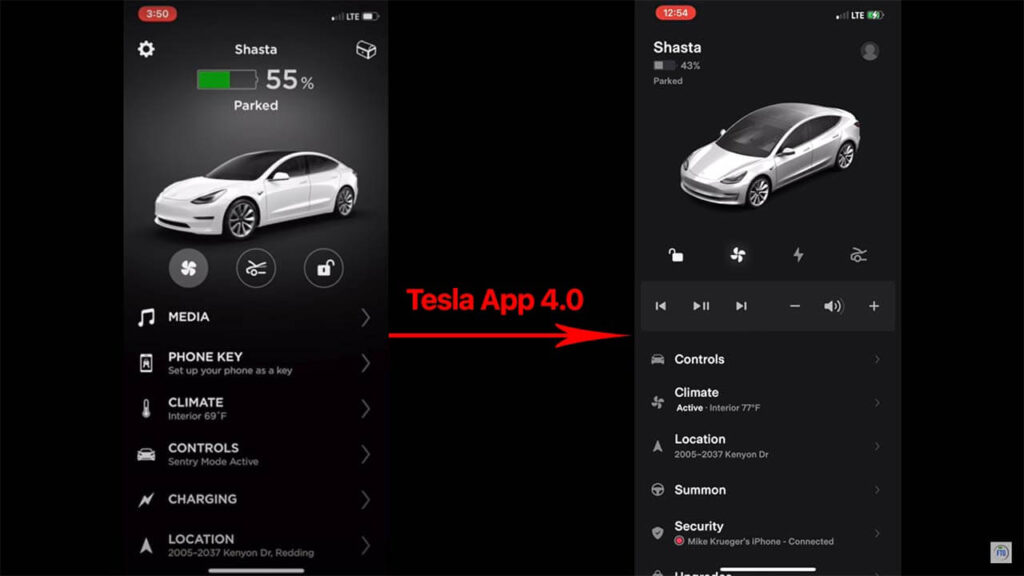
Tesla personally recommends both the actual owner and the new owner use the same version of the Tesla app.
3. Check Account Country/Region
Check if you have entered the correct country region for the other driver. Sometimes, when you add different regions for both yourself and the secondary driver, your car will not be able to add a new driver.
4. Share The Credentials
If nothing else seems to work, you can share the credentials with the person you want to add as a driver to your Tesla. Make sure that you share credentials with only those people whom you trust completely.
Take note that sharing important information with others will give them full access to your car. This is not recommended until you have no other option left.
5. Contact Tesla Support
When nothing of the above works for you, it’s time for you to contact Tesla support and get the help of a professional.
Conclusion
Add driver feature is important to allow people to access your Tesla without producing any risk to privacy.
